Practical SMTP and Intro to HTTP and FTP
This guide focuses on hands-on usage and command-line interaction with SMTP and not explaining the theory and a introduction to HTTP and FTP.
Protocol Details:
- Layer: Application Layer
- Transport: TCP (Port 25, 587, 465, or 1025 for dev)
- Reliability: High (requires TCP connection)
Run a Mail Server Locally (Mailpit)
1
2
3
4
5
6
7
docker run -d \
  --name mailpit \
  -p 1025:1025 \             # for SMTP server
  -p 8025:8025 \             # for Web UI
  -p 1110:1110 \             # for POP3
  -e MP_POP3_AUTH="pari:ninja" \
  axllent/mailpit:latest
Web UI: http://localhost:8025 SMTP: localhost:1025 POP3: localhost:1110 (User: pari, Pass: ninja)
Explore other container options: https://mailpit.axllent.org/docs/configuration/runtime-options/
Sending emails via Telnet and SMTP server
telnet localhost 1025
Note: We use
telnetinstead ofnc(netcat) becausencon some systems does not handle CRLF (\r\n) line endings gracefully, which SMTP requires.
START of Conversation
1
2
3
4
5
HELO localhost
EHLO localhost

MAIL FROM: <pari@greyninja.dev>
RCPT TO: <sam@greyninja.dev>
1
2
3
4
5
DATA
Subject: this is test

This is the body
.
Key Commands:
HELO/EHLO: Handshake.EHLO(Extended Hello) requests supported extensions.MAIL FROM: The “Envelope Sender” (return path).RCPT TO: The actual recipient(s). To send the mail to multiple users just repeat this command multiple timesDATA: Begins the message payload (headers + body)..(dot on a line by itself): Ends theDATAstream.RSET: Resets the current transaction (clears sender/recipient).QUIT: Closes connection.
One Liner
Note the carriage returns and the newlines.
1
printf "EHLO sam\r\nMAIL FROM:<pari@greyninja.dev>\r\nRCPT TO:<sam@greyninja.dev>\r\nDATA\r\nSubject: Final Test\r\nFrom: Pari <pari@greyninja.dev>\r\n\r\nEhlo sam\r\n.\r\n" | nc localhost 1025
Go to the web ui and see the mail created, explore the headers and raw mail. Anything confusing?? Why isn’t there a TO and FROM field and the rcpt to address is set to BCC and the MAIL from is set to return path.
Now send the following data:
1
2
3
4
5
6
7
DATA
Subject: Understanding Header
From: Pari <pari@greyninja.dev>
To: Sam <sam@greyninja.dev>

This is the body
.
Now see the raw mail and you will be able to see the from and to fields. So all these fields are just trivial labels for better UX.
For multiple users - To: Sam
<sam@greyninja.dev>, Boss<boss@greyninja.dev>
- Envelope (
MAIL FROM,RCPT TO): Used by the mail server (MTA to route the email. Like the address written on the outside of a physical envelope. - Headers (
From:,To:insideDATA): Part of the content displayed to the user. Like the letterhead inside the envelope.
the address are not verified here when running locally, but will be when we run using an actual smtp server
Retrieving Email (POP3)
In another terminal window do: telnet localhost 1110 to access the MailPit Message Access Agent Protocol POP3.
In the docker command we set the -e MP_POP3_AUTH="pari:ninja" which mean the user is pari and the password is ninja . So do the following
1
2
3
4
5
6
7
8
9
10
11
user pari

pass ninja

stat

list

retr 1

quit
Command Explanation:
USER/PASS: Authentication.STAT: Status. Returns the number of messages and total size bytes.LIST: List. Shows message ID and size for each message.RETR <msg_id>: Retrieve. Downloads the full content of the message ID.DELE <msg_id>: Delete. Marks a message for deletion.NOOP: No Operation. Keeps connection alive.QUIT: Updates the mailbox (removes items marked byDELE) and disconnects.
Using MIME (Multipurpose Internet Mail Extension)
SMTP was designed for just sending text. To send other media like files, images, audio etc we use MIME and Base64 encoding
Data such as the file is send using the base64 encoding
use
base64library or an online tool
- lets first do a simple txt file
base64 -i file_path : copy the output (I have used the base64 for file having “Hello World!”)
1
2
3
4
5
6
7
8
9
10
11
12
13
14
15
16
17
18
19
20
DATA
Subject: Understanding Header

MIME-Version: 1.0
Content-Type: multipart/mixed; boundary="bound"

--bound
Content-Type: text/plain; charset="utf-8"

hello pls find the attached file

--bound
Content-Type: application/octet-stream; name="<file_name>"
Content-Transfer-Encoding: base64
Content-Disposition: attachment; filename="<file_name>"

SGVsbG8gV29ybGQhCg==

--bound--
.
Now view the raw mail on the web ui or using telnet localhost 1110 i.e POP3 mailbox.
Explanation:
- Content-Type: multipart/mixed - mean that there are various type of information here text and file
- boundary=”bound” - used to set the start of a new content and the end of data (use can use anything instead of bound)
- now lets send a video or audio or pic

Download this image and base64 encode it, else I have pasted the base64 encoded output. We can’t send big images or videos directly as they out limit the buffer size.
1
2
3
4
5
6
7
8
9
10
11
12
13
14
15
16
17
18
19
20
DATA
Subject: Understanding Header

MIME-Version: 1.0
Content-Type: multipart/mixed; boundary="bound"

--bound
Content-Type: text/plain; charset="utf-8"

here is the image you asked for.

--bound
Content-Type: image/jpeg; name="tut.jpg"
Content-Transfer-Encoding: base64
Content-Disposition: attachment; filename="tut.jpg"

<base_encode>

--bound--
.
Base64 encoded image:
/9j/4AAQSkZJRgABAQAAAQABAAD/2wCEAAYGBgYHBgcICAcKCwoLCg8ODAwODxYQERAREBYiFRkVFRkVIh4kHhweJB42KiYmKjY+NDI0PkxERExfWl98fKcBBgYGBgcGBwgIBwoLCgsKDw4MDA4PFhAREBEQFiIVGRUVGRUiHiQeHB4kHjYqJiYqNj40MjQ+TERETF9aX3x8p//CABEIABIAFQMBIgACEQEDEQH/xAAtAAEBAQEBAAAAAAAAAAAAAAAAAgEDBQEBAAMAAAAAAAAAAAAAAAAAAQACBP/aAAwDAQACEAMQAAAC9Zl57U0nGgbDP//EAAL/2gAMAwEAAgADAAAAIU/w/P/EAAL/2gAMAwEAAgADAAAAEGgQPv/EABkRAAMAAwAAAAAAAAAAAAAAAAABEQIxMv/aAAgBAgEBPwCipn0haR//xAAWEQEBAQAAAAAAAAAAAAAAAAAQATL/2gAIAQMBAT8AJk//xAAcEAACAQUBAAAAAAAAAAAAAAAAAQIQESExQVH/2gAIAQEAAT8CTweEXY4jhHVUf//EABsQAQEAAwADAAAAAAAAAAAAAAEAETFBIVFx/9oACAEBAAE/IUc3az1YjGu8MM9fLha3/8QAGxABAAICAwAAAAAAAAAAAAAAAQARITEQYXH/2gAIAQEAAT8QSNAA9swA3i4EsdsREBK75LTP/9k=
Using google smtp server
Real servers like Gmail require encryption and Authentication SSL/TLS. telnet and nc cannot handle TLS directly. So we use OpenSSL.
openssl s_client -connect smtp.gmail.com:465 -crlf -ign_eof
Convert credentials to base64: echo -n "myemail@gmail.com" | base64
If 2FA is turned on for your account then you have to use Google App Password echo -n "mypassword" | base64
SMTP Conversation:
1
2
3
4
5
6
7
8
9
HELO smtp.gmail.com
AUTH LOGIN
<Enter Base64 Encoded Email>
<Enter Base64 Encoded Password>

MAIL FROM:<email>
RCPT TO:<mail>

DATA
Add the data in the same as we did earlier. If successful, you will receive 250 2.0.0 OK.
334 VXNlcm5hbWU6 : base64 encoded “Username” 334 UGFzc3dvcmQ6 : base64 encoded “Password”
Try: echo -n “UGFzc3dvcmQ6” | base64 -d
SMTP Over the Wire
Mailpit

- Notice the TCP 3-way handshake the 50759 → 1025 [SYN] , 50759 → 1025 [SYN, ACK] ,50759 → 1025 [ACK]
- No encryption: you can read the TCP segment content directly
smtp.google.com
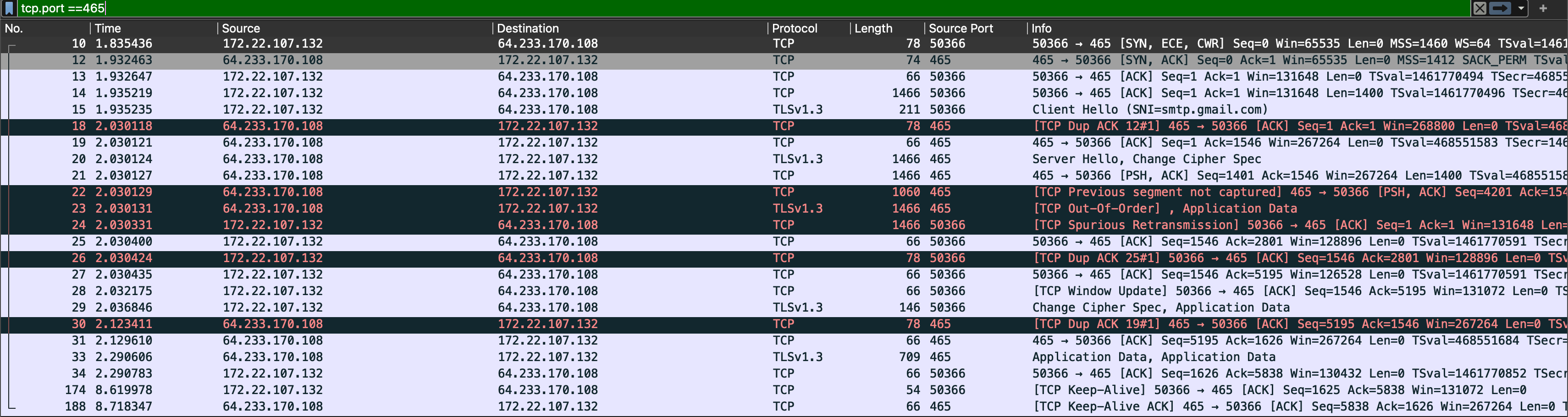
- Notice the TCP 3-way handshake the 50366 → 465 [SYN] , 465 → 50366 [SYN, ACK] ,50366 → 465 [ACK]
- TLS starts immediately : Client Hello
- The server responds and TLS is established: Server Hello
- Everything after this is encrypted, which you can see as the Application Data and not human readable
- The red packets: there actually are not error but TCP behaviour to ensure reliability
Test and Experiment and study the errors you get mainly starting from 5xx
Good Reading Material: Detailed SMTP
HTTP is just Text over TCP
My objective is show you how HTTP is just plain text over TCP. It’s eye opening how HTTP is simply like a contract between the client and the server and just a long if else conditional logic for an overview.
HTTP is not magic. It is plain text exchanged over a TCP connection.
Lets get on with it. Open Wireshark and on terminal run nc example.com 80 and do
1
2
3
GET / HTTP/1.1
Host: example.com
Take care of the end character twice at the end of the request \n or \r\n depending on the OS.
Line Feed vs Carriage return : https://stackoverflow.com/questions/12747722/what-is-the-difference-between-a-line-feed-and-a-carriage-return
Now compare the html output you get in the terminal and what you get when you browse example.com on a web browser. Same right?
I strongly recommend implementing a simple HTTP server by yourself. It will be a true eye opener and teach you how “protocol: a set of rules” is just a format over which everyone aggress and nothing more than that. I followed the following guide for it.
Codecrafters HTTP server tutorial: https://app.codecrafters.io/courses/http-server/overview
This article gives a good hands on
HTTP Protocol Hands on: https://gregsnotes.medium.com/http-protocol-hands-on-e028808ddef6
FTP
1
2
3
4
5
6
nc gnu.ftp.org 21  # control connection

user anonymous
PASV

returns (h1,h2,h3,h4,h5,h6)
In another terminal:
nc <ip> <port> : data connection
ip: h1.h2.h3.h4
port: h5*256 + h6
In the control terminal:
1
2
LIST
PASV  # data connection resets after every command
Each PASV connection works once and then is closed. Also it is only readonly and very restricted. Active connections are not actively reachable due to being behind a NAT so most public ftp server close active connections.